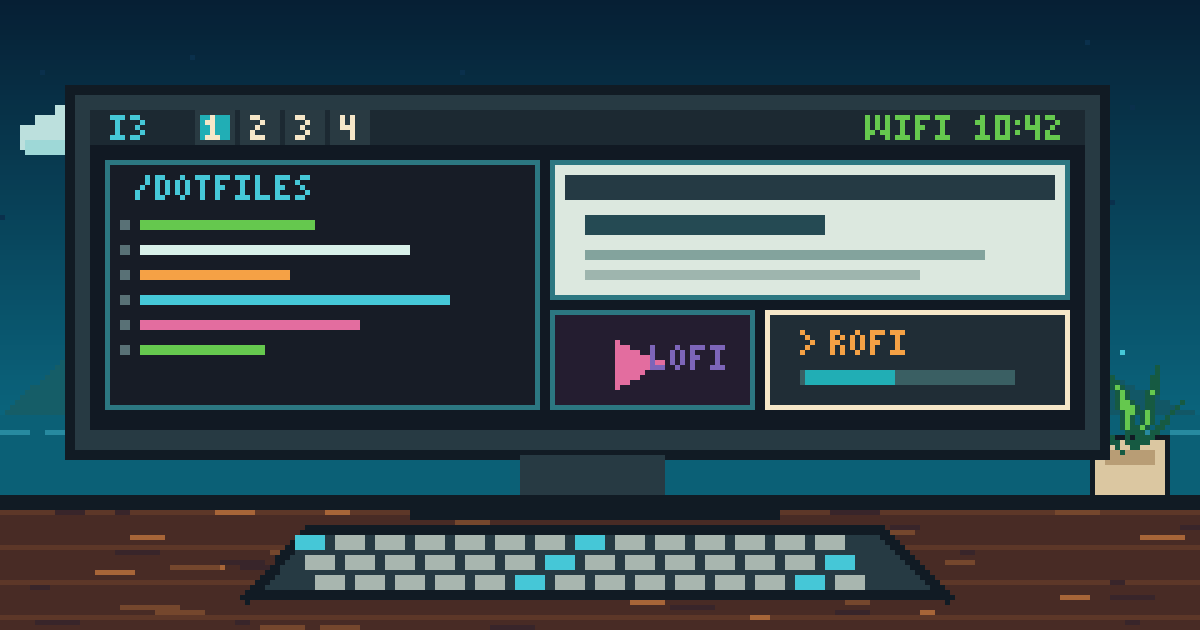
If you have ever browsed r/unixporn, you know the rabbit hole that is Linux ricing. The term "ricing" refers to customizing the look, feel, and workflow of your Linux desktop — from window managers and status bars to compositors and application launchers. I have spent a fair amount of time ricing my Pop!_OS setup, and in this post I want to document everything I have done so that I can refer back to it in the future (and hopefully help someone else along the way).
My setup runs on i3 window manager with picom for compositing, polybar as the status bar, and rofi as the application launcher — with a bunch of custom rofi menus for managing Wi-Fi, Bluetooth, power, and more. Everything is managed through Ansible and my dotfiles, so I can reproduce the entire setup on a fresh install with a single command.
What is Linux ricing
"Ricing" is the art of making your Linux desktop look and feel exactly how you want it. The name originates from car culture — specifically the term "Race Inspired Cosmetic Enhancement" — and was adopted by the Linux community to describe purely cosmetic customizations to a desktop environment.
In practice, ricing involves replacing or heavily customizing the default components of your desktop environment:
- Window Manager — controls how windows are placed, resized, and organized
- Compositor — adds visual effects like transparency, blur, rounded corners, and shadows
- Status Bar — displays system info (battery, Wi-Fi, volume, time) at the top or bottom of the screen
- Application Launcher — replaces the default app menu with something faster and more customizable
- Wallpaper, fonts, colors — the finishing touches that tie everything together
The goal is a desktop that is not only beautiful but also efficient to use.
i3 window manager
i3 is a tiling window manager. Unlike traditional desktop environments (GNOME, KDE) where you manually drag and resize windows, i3 automatically arranges windows in a non-overlapping tiled layout. Every pixel of screen space is used, and you navigate entirely with keyboard shortcuts.
I chose i3 over alternatives like Sway (Wayland) or Hyprland because i3 is mature, well-documented, and runs on X11 which has broader compatibility with tools like picom and polybar.
Core keybindings
The foundation of an i3 setup is the keybind configuration. I use Mod4 (the
Super/Windows key) as my modifier:
set $mod Mod4

# Navigation - vim-style hjkl
bindsym $mod+h focus left
bindsym $mod+j focus down
bindsym $mod+k focus up
bindsym $mod+l focus right

# Move windows
bindsym $mod+Shift+Left move left
bindsym $mod+Shift+Down move down
bindsym $mod+Shift+Up move up
bindsym $mod+Shift+Right move right

# Common applications
bindsym $mod+t exec --no-startup-id ghostty
bindsym $mod+w exec --no-startup-id firefox
bindsym $mod+f exec --no-startup-id nautilus $HOME
bindsym $mod+s exec --no-startup-id gnome-control-center

# Application launcher
bindsym $mod+space exec --no-startup-id rofi -show drun

# Kill focused window (with confirmation for protected apps)
bindsym $mod+q exec --no-startup-id rofi-kill-menu

# Fullscreen and layout
bindsym F11 fullscreen toggle
bindsym $mod+Tab focus parent; layout toggle split; focus child

# Resize mode
bindsym $mod+r mode "resize"
The vim-style hjkl navigation is something I picked up from configuring
Neovim, and it translates well to window management. I also bound common
applications to intuitive shortcuts — $mod+t for terminal, $mod+w for web
browser, $mod+f for files.
Media and brightness controls
i3 does not handle media keys by default — you have to bind them yourself. I use
pactl for volume, playerctl for media playback, and brightnessctl for
screen brightness:
# Volume control via PulseAudio
set $refresh_i3status killall -SIGUSR1 i3status
bindsym XF86AudioRaiseVolume exec --no-startup-id \
  pactl set-sink-volume @DEFAULT_SINK@ +7% && $refresh_i3status
bindsym XF86AudioLowerVolume exec --no-startup-id \
  pactl set-sink-volume @DEFAULT_SINK@ -7% && $refresh_i3status
bindsym XF86AudioMute exec --no-startup-id \
  pactl set-sink-mute @DEFAULT_SINK@ toggle && $refresh_i3status

# Media playback via playerctl
bindsym XF86AudioPlay exec --no-startup-id playerctl play-pause
bindsym XF86AudioNext exec --no-startup-id playerctl next
bindsym XF86AudioPrev exec --no-startup-id playerctl previous

# Screen brightness via brightnessctl
bindsym XF86MonBrightnessUp exec --no-startup-id brightnessctl set +5%
bindsym XF86MonBrightnessDown exec --no-startup-id brightnessctl set 5%-
The $refresh_i3status variable triggers i3status to update immediately after a
volume change, so the status bar reflects the new volume without waiting for the
next polling interval.
Workspace management
i3 supports up to 10 workspaces by default. I use $mod+1 through $mod+0 to
switch between them and $mod+Shift+<number> to move windows:
set $ws1 "1"
set $ws2 "2"
# ... $ws3 through $ws10

# Switch to workspace
bindsym $mod+1 workspace number $ws1
bindsym $mod+2 workspace number $ws2

# Move focused container to workspace
bindsym $mod+Shift+1 move container to workspace number $ws1
bindsym $mod+Shift+2 move container to workspace number $ws2
I typically keep my terminal on workspace 1, browser on workspace 2, and media on workspace 3. The beauty of a tiling WM is that each workspace can have its own layout, and switching between them is instant.
i3-gaps
Vanilla i3 tiles windows edge-to-edge with no spacing. While functional, it looks a bit cramped. i3-gaps is a fork of i3 that adds configurable gaps between windows — small inner and outer gaps that make the desktop feel much more open and visually pleasing.
Since i3-gaps is not available in the default Pop!_OS repositories, I build it from source using Ansible:
- name: 'Clone i3-gaps repository'
  ansible.builtin.git:
    repo: 'https://www.github.com/Airblader/i3'
    dest: '{{ temp_dir }}/i3-gaps'
    version: 'gaps-next'

- name: 'Build i3-gaps from source'
  ansible.builtin.shell: >
    cd {{ temp_dir }}/i3-gaps && meson -Ddocs=true -Dmans=true ../build && meson
    compile -C ../build && sudo meson install -C ../build
The configuration is simple — just a few lines in the i3 config:
# Remove window title bars (required for gaps to work)
for_window [class="^.*"] border pixel 0

# Gap configuration
gaps inner 10
gaps outer 0
gaps top 5
border pixel 0removes the title bar and border from all windows. This is required for gaps to work — i3-gaps cannot add gaps around windows that have title bars.gaps inner 10adds 10 pixels of spacing between adjacent windows.gaps outer 0keeps no extra spacing at the screen edges, so windows extend close to the polybar and screen borders.gaps top 5adds a small 5-pixel gap at the top, creating a bit of breathing room between windows and the polybar.
The result is a clean, airy layout where each window has its own breathing room without wasting too much screen real estate.
Autotiling
By default, i3 requires you to manually set the split direction (horizontal or vertical) before opening a new window. Autotiling automates this by listening to window events and automatically alternating between horizontal and vertical splits based on the dimensions of the focused window.
The logic is straightforward — if the focused window is wider than it is tall, the next split will be vertical (side by side). If it is taller than wide, the next split will be horizontal (stacked). This produces a spiral-like tiling pattern that feels natural and makes efficient use of space.
Installation is done by cloning the repo and copying the script:
- name: 'Installing i3-autotiling dependencies'
  ansible.builtin.pip:
    name:
      - 'i3ipc>=2.0.1'
    state: present

- name: 'Clone i3-autotiling repository'
  ansible.builtin.git:
    repo: 'https://github.com/nwg-piotr/autotiling.git'
    dest: '{{ temp_dir }}/i3-autotiling'
    version: 'master'
    depth: 1

- name: 'Copy autotiling script to /usr/local/bin'
  ansible.builtin.copy:
    src: '{{ temp_dir }}/i3-autotiling/autotiling/main.py'
    dest: '/usr/local/bin/autotiling'
    mode: '0755'
Autotiling depends on the i3ipc Python library, which provides an IPC
interface to communicate with the i3 window manager. Once installed, it runs as
a background daemon launched from the i3 config:
exec_always --no-startup-id autotiling
The exec_always directive ensures autotiling restarts whenever i3 is reloaded
(via $mod+Shift+r), so it stays in sync with the window manager.
i3lock — custom lock screen
The default i3lock is functional but plain — just a flat color screen. I wrote a custom lock script that uses my wallpaper as the lock screen background, resized to fit the current display resolution:
#!/usr/bin/env bash

INPUT_IMG=$HOME/wallpapers/thinkpad-wallpaper.png
OUTPUT_IMG=/tmp/i3lock.png
RES=$(xdpyinfo | awk '/dimensions/{print $2}')

convert $INPUT_IMG \
  -resize "${RES}^" \
  -gravity center \
  -extent "${RES}" \
  "$OUTPUT_IMG"

i3lock --image="$OUTPUT_IMG" --tiling --ignore-empty-password
A few things happening here:
xdpyinfofetches the current screen resolution (e.g.,2560x1440).convert(from ImageMagick) resizes the wallpaper to fill the screen. The^suffix on the resize geometry means "fill" — the image is scaled up so that the smaller dimension matches, then cropped from the center with-gravity center -extent.i3lock --tilingtiles the image across all monitors if you have a multi-monitor setup.--ignore-empty-passwordprevents i3lock from validating an empty password press, so hitting Enter on an empty field does nothing instead of flashing the "wrong password" indicator.
This script is symlinked to /usr/local/bin/i3lock-custom via Ansible, and then
hooked into xss-lock for automatic lock-before-suspend:
# Lock screen before suspend
exec --no-startup-id xss-lock --transfer-sleep-lock -- i3lock-custom

# Auto-suspend after 10 minutes of inactivity
# (but only if media is not playing)
exec --no-startup-id xautolock -time 10 -locker \
  'sh -c "playerctl status 2>/dev/null | grep -q Playing || systemctl suspend"'

# Manual suspend
bindsym $mod+Shift+l exec systemctl suspend
The xautolock command is a nice touch — it checks if media is playing before
suspending, so watching a video or listening to music will not trigger the
auto-lock. The playerctl status check returns "Playing" if any media player
(Spotify, Firefox, etc.) is actively playing audio.
Picom — compositing with style
Picom is an X11 compositor that adds visual effects that i3 cannot do on its own — transparency, blur, rounded corners, shadows, and fading animations. Without a compositor, i3 windows are flat opaque rectangles. With picom, the desktop comes alive.
Transparency and blur
backend = "glx";

# Opacity settings
active-opacity = 1.0;
inactive-opacity = 1.0;
frame-opacity = 1.0;
inactive-opacity-override = false;
blur-background = true;
blur-method = "dual_kawase";
blur-strength = 8;
opacity-rule = [
  "100:class_g = 'Polybar'",
  "100:class_g = 'com.mitchellh.ghostty' && focused",
  "90:class_g = 'com.mitchellh.ghostty' && !focused"
]
The key setting here is the Kawase blur (dual_kawase). This is a two-pass
blur algorithm that is much faster than the traditional Gaussian blur while
producing similar visual results. At blur-strength = 8, you get a pleasant
frosted glass effect on transparent windows.
The opacity-rule array is where things get interesting. I keep most windows
fully opaque, but my terminal (Ghostty) drops to 90%
opacity when unfocused. This creates a subtle visual cue — you can see the
wallpaper bleeding through inactive terminal windows while the focused one stays
crisp and sharp. Polybar is explicitly set to 100% so it never becomes
transparent.
Rounded corners
rounded-corners = true;
corner-radius = 10;
rounded-corners-exclude = [
  "class_g = 'Polybar'"
];
A corner-radius of 10 pixels gives windows soft, modern-looking rounded
corners. Polybar is excluded because rounding a full-width bar that sits at the
edge of the screen looks odd — you end up with visible gaps in the corners where
the wallpaper peeks through.
Teal shadows
shadow = true;
shadow-radius = 10;
shadow-offset-x = -10;
shadow-offset-y = -10;
shadow-opacity = 0.7;
shadow-color = "#7DFFFC"
shadow-exclude = [
    "!focused"
]
Instead of the default black shadows, I use a teal shadow color (#7DFFFC).
This is a purely cosmetic choice — the cyan glow around the focused window adds
a subtle neon accent that ties in with my overall color scheme. Shadows are
excluded on unfocused windows ("!focused") so only the active window gets the
glow effect, making it immediately obvious which window has focus.
Fading
fading = true;
fade-in-step = 0.03;
fade-out-step = 0.03;
no-fading-openclose = true;
Fading adds smooth transitions when windows are focused, unfocused, or moved
between workspaces. The fade-in-step and fade-out-step values of 0.03
produce a subtle, non-distracting fade (lower values = slower fade). I disable
fading on open/close (no-fading-openclose = true) because I prefer windows to
appear and disappear instantly — the fade effect is reserved for focus changes
only.
Startup race condition
One thing I learned the hard way — picom must be started after any xrandr
commands that configure multi-monitor setups. If picom starts while xrandr is
still reconfiguring displays, you get rendering artifacts. The fix is a simple
delay:
# Kill existing picom instance, then restart with a delay
exec_always --no-startup-id pkill picom
exec_always --no-startup-id sleep 1 && \
  picom --config ~/.config/picom/picom.conf -b
The exec_always directive means picom restarts on every i3 reload, and
pkill picom ensures there is no zombie process left behind. The sleep 1
gives xrandr time to finish before picom initializes.
Polybar — the status bar
Polybar replaces i3's built-in status bar
(i3bar) with something far more customizable. While i3bar is functional, it is
limited in terms of styling, module variety, and visual flexibility. Polybar
gives you full control over fonts, colors, layout, and what information is
displayed.
Color scheme — Catppuccin Mocha
I use the Catppuccin Mocha color palette for polybar. Catppuccin is a warm, pastel color scheme that is easy on the eyes and pairs well with the teal/cyan accents from picom:
[colors]
base = #1e1e2e
mantle = #181825
crust = #11111b
text = #cdd6f4
subtext0 = #a6adc8
subtext1 = #bac2de
surface0 = #313244
surface1 = #45475a
surface2 = #585b70
blue = #89b4fa
lavender = #b4befe
sapphire = #74c7ec
sky = #7DFFFC
teal = #94e2d5
green = #a6e3a1
yellow = #f9e2af
peach = #fab387
maroon = #eba0ac
red = #f38ba8
mauve = #cba6f7
pink = #f5c2e7

[colors]
background = ${colors.base}
background-alt = ${colors.blue}
foreground = ${colors.text}
primary = ${colors.mauve}
secondary = ${colors.mantle}
alert = ${colors.red}
disabled = ${colors.subtext1}
The sky color (#7DFFFC) matches the picom shadow color, keeping a consistent
teal accent throughout the desktop.
Bar configuration
[bar/mybar]
monitor = ${env:MONITOR:}
width = 100%
height = 24
radius = 0
background = ${colors.background}
foreground = ${colors.foreground}
bottom = false

padding-left = 1
padding-right = 1
module-margin = 1

separator = |
separator-foreground = ${colors.flamingo}

font-0 = JetBrainsMono Nerd Font:size=13;3
font-1 = JetBrainsMono Nerd Font:style=Bold:size=13;3
modules-left = xworkspaces xwindow
modules-right = wlan bluetooth pulseaudio temperature battery date xkeyboard

cursor-click = pointer
enable-ipc = true
The monitor = ${env:MONITOR:} line is important — it reads the monitor name
from an environment variable, which allows the launch script to spawn one
polybar instance per connected monitor.
Two font slots are defined — regular and bold — so modules can switch between
them using Polybar's %{T1} and %{T2} formatting tags. The active workspace
label uses the bold font to make it stand out.
Module highlights
The left side shows workspaces and the currently focused window title. The right side packs in system information:
Workspaces — the active workspace gets a yellow background with dark text, making it pop against the dark bar. Occupied but unfocused workspaces show in a muted color, and empty workspaces fade to near-invisible:
[module/xworkspaces]
type = internal/xworkspaces
label-active = "%{T2}%name%%{T-}"
label-active-foreground = ${colors.background}
label-active-background = ${colors.yellow}
label-active-padding = 1

label-occupied = %name%
label-occupied-padding = 1
label-occupied-foreground = ${colors.disabled}

label-empty = %name%
label-empty-foreground = ${colors.disabled}
label-empty-padding = 2
Battery — uses animated charging icons that cycle through the battery fill levels while plugged in, and static icons that change color based on capacity (maroon when low, peach at medium, default at full):
[module/battery]
type = internal/battery
battery = BAT1
adapter = AC
poll-interval = 5
full-at = 100
low-at = 20

animation-charging-0 =
animation-charging-1 =
animation-charging-2 =
animation-charging-3 =
animation-charging-4 =
animation-charging-framerate = 750
format-charging = <animation-charging>  <label-charging>

ramp-capacity-0 =
ramp-capacity-1 =
ramp-capacity-2 =
ramp-capacity-3 =
ramp-capacity-4 =
ramp-capacity-0-foreground = ${colors.maroon}
ramp-capacity-1-foreground = ${colors.peach}
format-discharging = <ramp-capacity>  <label-discharging>
Temperature — displays CPU temperature with a maroon-colored thermometer icon, and switches to red text when the warning threshold of 72 degrees is exceeded:
[module/temperature]
type = internal/temperature
thermal-zone = 0
warn-temperature = 72
format = <label>
format-prefix = " "
format-prefix-foreground = ${colors.maroon}
label = %temperature-c%
label-warn = %{F#f38ba8}%temperature-c%%{F-}
Wi-Fi and Bluetooth — these modules are clickable. Clicking them opens the respective rofi menu for managing connections:
[module/bluetooth]
type = custom/script
exec = rofi-bluetooth --status
interval = 5
format = %{A1:rofi-bluetooth &:}%{A}
format-foreground = ${colors.blue}

[module/wlan]
inherit = network-base
interface-type = wireless
label-connected = %essid%
; Clicking opens rofi-wifi-menu
format-connected = %{A1:rofi-wifi-menu:}<label-connected>%{A}
The %{A1:command:}...%{A} syntax is Polybar's click-action formatting — left
clicking on the Bluetooth icon opens rofi-bluetooth, and clicking Wi-Fi opens
rofi-wifi-menu. This tight integration between polybar and rofi is one of the
things that makes the setup feel cohesive.
Multi-monitor support
A single polybar instance only renders on one monitor. To support multiple
monitors, I wrote a launch script that queries xrandr for connected displays
and spawns a separate polybar for each:
POLYBAR_PATH="~/.config/polybar/config.ini"

# Terminate already running bar instances
killall -q polybar

# Determine the network interface used
IFACE=$(nmcli -t -f DEVICE,TYPE device status | \
  awk -F: '$2=="wifi"{print $1}')
export POLYBAR_IFACE="$IFACE"

if type "xrandr"; then
  for m in $(xrandr --query | grep " connected" | cut -d" " -f1); do
    MONITOR=$m polybar mybar --config=$POLYBAR_PATH&
  done
else
  polybar mybar --config=$POLYBAR_PATH&
fi
The script also detects the Wi-Fi network interface via nmcli and exports it
as POLYBAR_IFACE, which the wlan module reads via
interface = ${env:POLYBAR_IFACE}. This makes the config portable — it works on
any machine regardless of whether the Wi-Fi interface is called wlan0,
wlp2s0, or something else.
Rofi — the Swiss Army knife launcher
Rofi is an application launcher, but calling it just a launcher undersells it. Rofi is a general-purpose menu system that can be used for anything — launching apps, selecting Wi-Fi networks, managing Bluetooth devices, or even building custom menus for anything you can script.
Configuration and Nord theme
The base rofi config is minimal — it sets the font, icon theme, terminal, and points to a custom theme:
configuration {
  modi: 'run,window,combi';
  font: 'JetBrainsMono Nerd Font 12';
  icon-theme: 'Oranchelo';
  show-icons: true;
  terminal: 'ghostty';
  location: 0;
  disable-history: false;
  hide-scrollbar: false;
  display-drun: '  drun ';
  drun-display-format: '{icon} {name}';
  sidebar-mode: true;
}

@theme "nordic";
The @theme "nordic" line loads a separate theme file that defines all the
colors using the Nord color palette. The theme
gives rofi a translucent, frosted-glass look that pairs well with picom's Kawase
blur:
* {
  nord0: #2e3440;
  nord1: #3b4252;
  nord7: #8fbcbb;
  nord9: #81a1c1;
  nord10: #5e81ac;

  foreground: @nord9;
  highlight: underline bold #eceff4;
  transparent: rgba(46, 52, 64, 0);
}

window {
  location: center;
  anchor: center;
  transparency: 'screenshot';
  padding: 10px;
  border-radius: 6px;
  background-color: @transparent;
}

inputbar {
  color: @nord6;
  padding: 11px;
  background-color: #3b4252;
  border: 1px;
  border-radius: 6px 6px 0px 0px;
  border-color: @nord10;
}

listview {
  padding: 8px;
  border-radius: 0px 0px 6px 6px;
  border-color: @nord10;
  border: 0px 1px 1px 1px;
  background-color: rgba(46, 52, 64, 0.9);
}

element selected.normal {
  background-color: @nord7;
  text-color: #2e3440;
}
The transparency: "screenshot" setting is important — it tells rofi to take a
screenshot of the current screen content and use it as the background, which
combined with picom's blur produces the frosted glass effect. The
rgba(46,52,64,0.9) background on the list view adds a 90% opaque Nord Polar
Night tint, keeping the text readable while still showing a hint of the blurred
desktop behind.
Custom rofi menus
Beyond the built-in drun mode for launching applications, I have built six
custom rofi menus that are bound to keyboard shortcuts in my i3 config:
| Shortcut | Menu | Purpose |
|---|---|---|
$mod+Space | drun | Application launcher |
$mod+Shift+b | rofi-bluetooth | Bluetooth device management |
$mod+Shift+w | rofi-wifi-menu | Wi-Fi network selector |
$mod+Shift+c | rofi-copy-menu | File copy utility |
$mod+Shift+k | rofi-keybind-menu | i3 keybinding reference |
$mod+Shift+q | rofi-power-menu | Shutdown, reboot, suspend |
$mod+q | rofi-kill-menu | Kill focused window |
Each menu is a standalone bash script that pipes options into rofi -dmenu. Let
me walk through a few of them.
Power menu
The power menu is the simplest — it presents three options with Unicode icons
and maps the selection to a systemctl command:
#!/usr/bin/env bash

options="⏾ Suspend\n⭮ Reboot\n⏻ Shutdown\n Cancel"

chosen=$(echo -e "$options" | rofi -dmenu -i -p "Power")

case "$chosen" in
  *Suspend)  systemctl suspend  ;;
  *Reboot)   systemctl reboot   ;;
  *Shutdown) systemctl poweroff ;;
  *)         exit 0             ;;
esac
The -i flag makes the search case-insensitive, so typing "shut" will match
"Shutdown". The -p "Power" sets the prompt text. It is bound with a 15-second
timeout in the i3 config (timeout 15 rofi-power-menu) so it auto-closes if you
accidentally trigger it and walk away.
Wi-Fi menu
The Wi-Fi menu is more involved — it detects the current connection, lists available networks, and handles connecting to both saved and new networks:
#!/usr/bin/env bash
BLUE="#94e2d5"
ICON=" "
# Get currently connected SSID
current_ssid=$(nmcli -t -f active,ssid dev wifi | \
grep '^yes' | cut -d: -f2)
# Determine toggle state
connected=$(nmcli -fields WIFI g)
if [[ "$connected" =~ "enabled" ]]; then
toggle=" Disable Wi-Fi"
elif [[ "$connected" =~ "disabled" ]]; then
toggle=" Enable Wi-Fi"
fi
# List available networks (excluding current)
wifi_list=$(nmcli --fields "SECURITY,SSID" device wifi list | \
grep -v -F "$current_ssid" | sed 1d | \
sed 's/ */ /g' | sed -E "s/WPA*.?\S/ /g" | \
sed "s/^--/ /g" | sed "s/ //g" | sed "/--/d")
# Highlight current connection at top
if [ -n "$current_ssid" ]; then
styled_current="<b><span foreground=\"$BLUE\">$current_ssid</span></b>"
wifi_list=$(echo -e "$ICON $styled_current\n$wifi_list" | awk '!x[$0]++')
fi
chosen_network=$(echo -e "$toggle\n$wifi_list" | uniq -u | \
rofi -dmenu -i -selected-row 2 -p "Wi-Fi SSID: " -markup-rows)
The currently connected network appears at the top of the list in bold teal text
using Pango markup (-markup-rows enables rich text in rofi). The
-selected-row 2 pre-selects the third row (after the toggle and current
network), so you can immediately start typing to filter available networks.
When you select a new network, the script checks if it is a saved connection
(via nmcli -g NAME connection) and either reconnects directly or prompts for a
password through another rofi dialog.
Keybinding reference menu
This is one of my favorites — it parses the running i3 config and displays all keybindings in a searchable rofi menu:
#!/usr/bin/env bash

KEYBINDS=$(
  i3-msg -t get_config \
    | grep -E '^(bindsym|bindcode)' \
    | grep -v '^bindsym XF86' \
    | awk '
      {
        key = $2
        if ($0 ~ /--no-startup-id/) {
          sub(/^.*--no-startup-id[[:space:]]+/, "", $0)
        } else if ($0 ~ /exec[[:space:]]+/) {
          sub(/^.*exec[[:space:]]+/, "", $0)
        } else {
          sub(/^bind(sym|code)[[:space:]]+[^[:space:]]+[[:space:]]+/, "", $0)
        }
        gsub(/&/, "\&", $0)
        gsub(/&/, "\&", key)
        printf "<span foreground=\"#94e2d5\">%s</span> → %s\n", key, $0
      }
    '
)

echo "$KEYBINDS" | rofi -dmenu -i -p "  i3 keybinds" -markup-rows
The script uses i3-msg -t get_config to fetch the live i3 configuration, then
awk parses each keybinding into a formatted string with the key combination
highlighted in teal. The XF86 keys (media/brightness) are excluded since those
are hardware keys that are not useful to look up.
This is great as a quick reference — instead of opening the config file in a
text editor, I press $mod+Shift+k and instantly get a searchable list of every
keybinding. Since it reads the live config, it is always up to date even after
i3 reloads.
Kill menu
The kill menu adds a safety check before closing important applications:
class=$(i3-msg -t get_tree | \
  jq -r ".. | objects | select(.focused==true).window_properties.class");

class=$(echo "$class" | tr "[:upper:]" "[:lower:]")
PROTECTED="firefox|spotify|google-chrome";

if echo "$class" | grep -Eq "$PROTECTED"; then
  printf "Yes\nNo" | rofi -dmenu -p "Kill window?" | \
    grep -q "Yes" && i3-msg kill
else
  i3-msg kill
fi
When you press $mod+q, the script checks the window class of the focused
application using i3-msg -t get_tree (which returns the entire i3 window tree
as JSON). If the window belongs to a "protected" application (Firefox, Spotify,
Chrome), a confirmation dialog appears. Otherwise, the window is killed
immediately. This prevents accidentally closing a browser with 30 tabs open.
Copy menu
The copy menu uses fd (a fast alternative to find) to present a file-picker
interface for copying files:
#!/usr/bin/env bash
set -e

FD_CMD=$(command -v fd || command -v fdfind)
BASE_DIR="$HOME"

# Pick source file
SOURCE=$(
  $FD_CMD . "$BASE_DIR" --type f --hidden --follow \
  | rofi -dmenu -i -p "Copy source:"
)
[ -z "$SOURCE" ] && exit 0

# Pick destination directory
DEST=$(
  (
    printf "%s\n" \
      "$HOME" "$HOME/Desktop" "$HOME/Documents" \
      "$HOME/Downloads" "$HOME/Pictures" "$HOME/Videos"
    $FD_CMD . "$BASE_DIR" --type d --hidden --follow
  ) | awk '!seen[$0]++' \
  | rofi -dmenu -i -p "Copy to:"
)
[ -z "$DEST" ] && exit 0

cp -r --preserve=all "$SOURCE" "$DEST"
notify-send "Copy completed"
The first rofi dialog searches for files, the second searches for directories
(with common destinations pre-populated at the top). After selection,
cp -r --preserve=all copies the file and a desktop notification confirms the
operation. It is a simple but surprisingly useful utility for quick file
operations without opening a full file manager.
Startup sequence
All of these components are orchestrated through the i3 config's startup section. The order matters:
# 1. Kill and restart picom (with delay for xrandr)
exec_always --no-startup-id pkill picom
exec_always --no-startup-id sleep 1 && \
  picom --config ~/.config/picom/picom.conf -b

# 2. Launch polybar (one per monitor)
exec_always --no-startup-id ~/.config/polybar/launch_polybar.sh

# 3. Set wallpaper
exec_always --no-startup-id feh --bg-scale ~/wallpapers/camp-wallpaper.jpg

# 4. Start autotiling daemon
exec_always --no-startup-id autotiling

# 5. Lock screen integration
exec --no-startup-id xss-lock --transfer-sleep-lock -- i3lock-custom
exec --no-startup-id xautolock -time 10 -locker \
  'sh -c "playerctl status 2>/dev/null | grep -q Playing || systemctl suspend"'

# 6. Launch default applications
exec --no-startup-id i3-msg "workspace 1; exec ghostty"

# 7. System tray
exec --no-startup-id nm-applet
exec --no-startup-id dex --autostart --environment i3
The distinction between exec and exec_always is important:
execruns the command once when i3 first starts. Reloading i3 with$mod+Shift+rdoes not re-run these commands.exec_alwaysruns the command every time i3 starts or reloads. This is used for picom, polybar, feh, and autotiling because they need to restart cleanly on reload.
Applications like Ghostty, nm-applet, and xss-lock use exec because you do
not want duplicate instances after reloading.
Ansible — tying it all together
All of this configuration is managed through Ansible roles in my dotfiles
repository. The i3 role bundles the window manager, compositor, and status bar
together, while rofi has its own dedicated role:
- name: 'Installing i3 dependencies'
  ansible.builtin.apt:
    name:
      - i3
      - xss-lock
      - xautolock
      - imagemagick
      - polybar
      - picom
      - feh
      - arandr
      - autorandr
    state: present

- name: 'Install i3lock'
  ansible.builtin.import_tasks: 'install_i3lock.yml'

- name: 'Install i3-gaps'
  ansible.builtin.import_tasks: 'install_i3_gaps.yml'

- name: 'Install i3-autotiling'
  ansible.builtin.import_tasks: 'install_i3_autotiling.yml'

- name: 'Symlink config folders'
  ansible.builtin.file:
    src: '{{ role_path }}/files/{{ item }}'
    dest: '{{ config_dir }}/{{ item }}'
    state: link
    mode: '0755'
  loop:
    - i3
    - picom
    - polybar
    - autorandr
The symlink approach is key — instead of copying config files, Ansible creates
symbolic links from ~/.config/ to the dotfiles repo. This means any edits to
the config files are automatically tracked by git, and running the playbook on a
fresh machine instantly sets up the exact same environment.
The rofi role follows the same pattern — install the package, set up each custom menu by either cloning a repo or symlinking a local script, then symlink the entire config folder:
- name: 'Installing rofi dependencies'
  ansible.builtin.apt:
    name:
      - rofi
    state: present

- name: 'Installing rofi_{{ item }}'
  ansible.builtin.include_tasks:
    file: 'install_rofi_{{ item }}.yml'
  loop:
    - bluetooth
    - power_menu
    - wifi_menu
    - copy_menu
    - keybind_menu
    - kill_menu

- name: 'Symlink rofi config folder'
  ansible.builtin.file:
    src: '{{ role_path }}/files/'
    dest: '{{ config_dir }}/rofi'
    state: link
    mode: '0755'
To set up the entire ricing stack on a fresh Pop!_OS install, it is just:
./run.sh --tags i3,rofi
Conclusion
Linux ricing is one of those hobbies where the journey is the reward. Every tweak leads to another idea, and the result is a desktop that is uniquely yours. My setup has evolved over time — from a basic i3 config to a full compositor with blur and shadows, a feature-rich polybar, and custom rofi menus for everything I do frequently.
Here is a summary of the tools that make up my ricing stack:
| Tool | Purpose | Key config |
|---|---|---|
| i3 | Tiling window manager | Vim keybinds, 10 workspaces |
| i3-gaps | Gaps between windows | gaps inner 10, border pixel 0 |
| Autotiling | Automatic split direction | Spiral-like tiling pattern |
| i3lock | Custom lock screen | Wallpaper-based, ImageMagick resize |
| Picom | Compositor | Kawase blur, rounded corners, teal shadows |
| Polybar | Status bar | Catppuccin Mocha, clickable modules |
| Rofi | App launcher + custom menus | Nord theme, 6 custom menus |
| Feh | Wallpaper setter | --bg-scale for full coverage |
If you are interested in ricing your own setup, I would recommend starting with just i3 and gradually adding components. Get comfortable with the keybindings first, then add picom for eye candy, polybar for information density, and rofi for workflow automation. Each piece builds on the last, and you will learn a lot about how Linux desktops work under the hood along the way.
Here are some resources I found helpful:
- i3 User Guide
- Picom GitHub
- Polybar Wiki
- Rofi Documentation
- Catppuccin Color Palette
- Nord Color Palette
- r/unixporn — endless inspiration